How to Turn Off AI Overview: 6 Methods That Work in 2026

Last checked: November 17, 2026, against Google Search Help wording, competitor guides checked October 20 to November 15, 2026, and browser and extension documentation.
How to turn off AI Overview is the question, and the honest answer comes first: there is no official switch, because Google calls AI Overviews a core Search feature that cannot be turned off.
Readers will learn six workarounds that stop the AI box from appearing, which ones stick, which ones reset, and which ones break.
Readers will also learn the per-browser and per-device steps, the extension trust rules, the Labs traps, and the website-owner opt-out.
Every method carries its source and check date, every conflict is labelled by source, and no step, menu name, or statistic is invented.
Google changes Search, Labs, and browser behavior without notice, so re-check every method before relying on it, and re-check quarterly.
The Short Answer: No Off Switch, 6 Workarounds
Google’s own help page says AI Overviews “are a core Google Search feature, like knowledge panels. Features cannot be turned off.”
Google Search Help is named in plain text here and not linked.
Its AI Overviews help page returned a 404 status to direct checks twice on November 17, 2026, even though it served the correct page title.
The same help page documents the one escape hatch Google offers: the Web filter, which “displays only text-based links without features like AI Overviews.”
Banthebots read the Computer, Android, and iPhone versions of that help page on September 2, 2026, and the wording was identical on all three, so no platform hides a secret toggle.
Nothing in a Google Account, in Search settings, or in the Google app removes AI Overviews, per ContentForce, checked October 20, 2026.
Signed-out tests in October 2026 still showed AI Overviews, per prior research on this topic, so signing out of Google is not a fix.
The Definition Box
AI Overviews: AI-generated summaries Google prints above its search results, answering the query in a box before the plain links.
AI Mode: a separate Google Search tab that gives a conversational, AI-first answer experience, distinct from the AI Overview box on the main results page.
Web filter: a Google Search filter that displays only text-based links, without features like AI Overviews, knowledge panels, or featured snippets.
udm=14: a URL parameter that opens the Web filter view directly; undocumented by Google, available since May 2024, per Stackmatix, and it could stop working at any time.
Custom search engine: a browser setting that points the address bar at a chosen search address, so every address-bar search opens that view by default.
Search Labs: Google’s opt-in testbed for experimental Search features; its toggles cover experiments only, not core features like AI Overviews.
The Method Comparison Table
| Method | Removes AI Overviews? | Permanent? | Works on | Effort |
|---|---|---|---|---|
| 1. Web filter, clicked by hand | Yes | No, one search at a time | Every browser and the Google app | One click |
| 2. udm=14, hand-typed | Yes | No, one search at a time | Every browser, by editing the address | Seconds |
| 3. Custom search engine with udm=14 | Yes | Yes, in that browser | Chrome, Firefox, Edge, Brave on desktop; Chrome and Firefox on mobile, with conflicts labelled below | One-time setup, a few minutes |
| 4. Browser extension | Yes, hides the box | Until Google changes its page layout | Desktop browsers; Safari via App Store extensions | One-time install |
| 5. -ai operator | Sometimes | No, one search at a time | Every browser and the Google app | Low, but unreliable |
| 6. Switch search engines | Yes, no Google AI at all | Yes, until you switch back | Every browser and device | One-time setup |
The table combines the method tables from Trustloud, ContentForce, and Search Engine Roundtable, checked November 13, October 20, and October 31, 2026, respectively.
The Search Engine Roundtable guide gives four working methods with a method table and a Web Guide warning, and it was verified live on November 17, 2026.
Why Google Will Not Give You an Off Switch
Google is not removing AI Overviews, per ModemGuides, checked October 31, 2026.
As of its October 28, 2026 earnings call, Google is expanding ads inside AI Overviews and AI Mode to more users and more countries, per ModemGuides.
An off switch would remove the surface where those ads appear, which is why no off switch is coming, per the earnings-call read.
Google’s help page also carries a note that Google is “currently updating settings for Google Search services,” per Trustloud, checked November 13, 2026, so menus may shift over the coming months.
Method 1: The Web Filter (The Official Way)
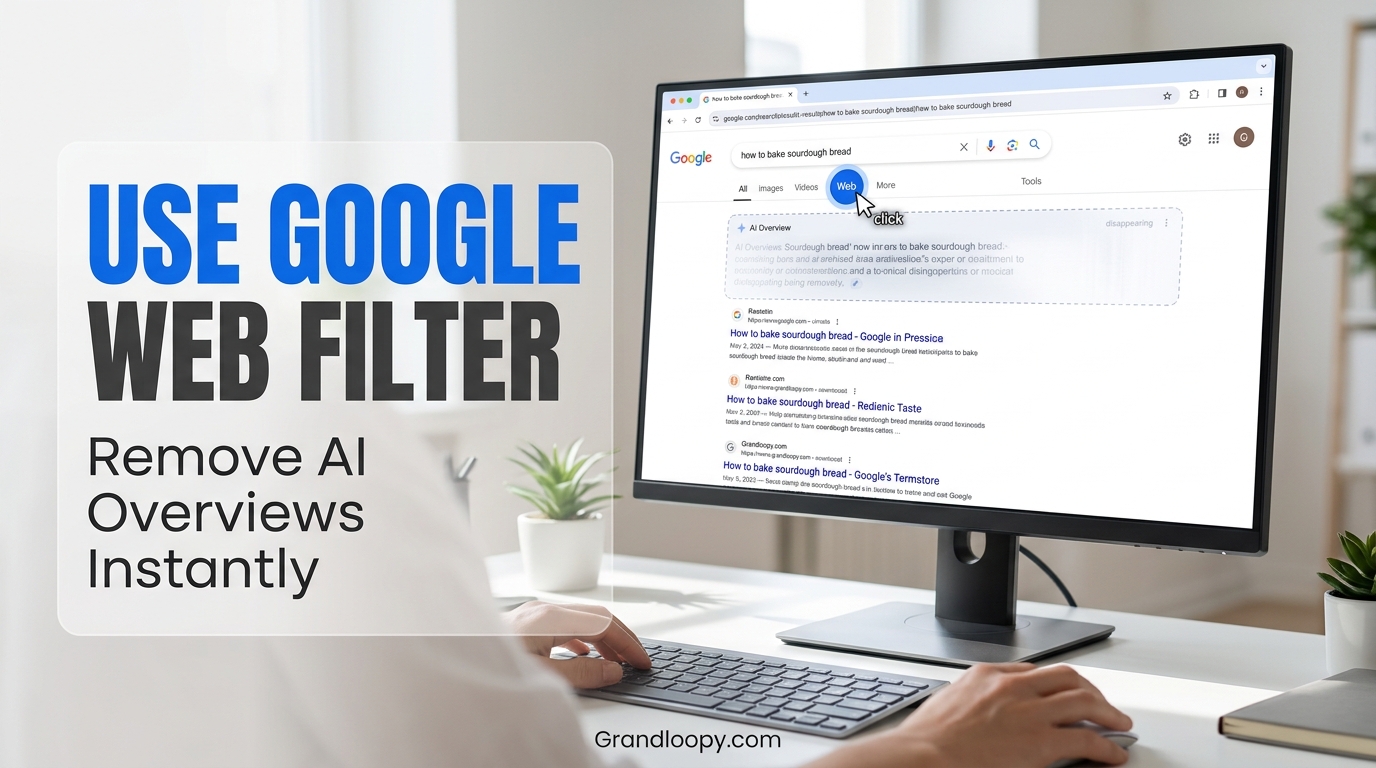
The Web filter is the only method Google documents, so start here, per ContentForce.
After running a search, click Web in the row of tabs under the search bar, per ContentForce and Search Engine Roundtable.
If Web is not visible, open More and pick it from the list, per ContentForce, TechUnbloated, and DenebrixAI.
Google reloads the page with plain blue text links and no AI Overview box, per ContentForce.
The downside is that it fixes one search only, per DenebrixAI: the next address-bar search returns the usual AI-heavy page, and the tab must be clicked again.
Steps: Desktop and Mobile
Step 1: run any Google search, on any browser, on any device.
Step 2: look under the search bar for the row of tabs: All, Images, Videos, and more.
Step 3: click Web, or open More and click Web if it is hidden there.
Step 4: confirm the page shows plain links only, with no AI Overview box at the top.
The Web filter works in every browser and the Google app, per ContentForce and Search Engine Roundtable.
What You Lose: More Than AI Overviews
The Web filter displays only text-based links, per Google’s help page, which means it removes more than the AI box.
Knowledge panels, featured snippets, and other search features also disappear in the Web view, because the filter shows links only.
Readers who rely on knowledge panels for quick facts, or featured snippets for direct answers, will lose those too, and that trade-off must be stated honestly.
The Web filter is the cleanest view Google offers, and it is also the sparsest, which is the price of removing the AI box officially.
Method 2: The udm=14 URL Trick
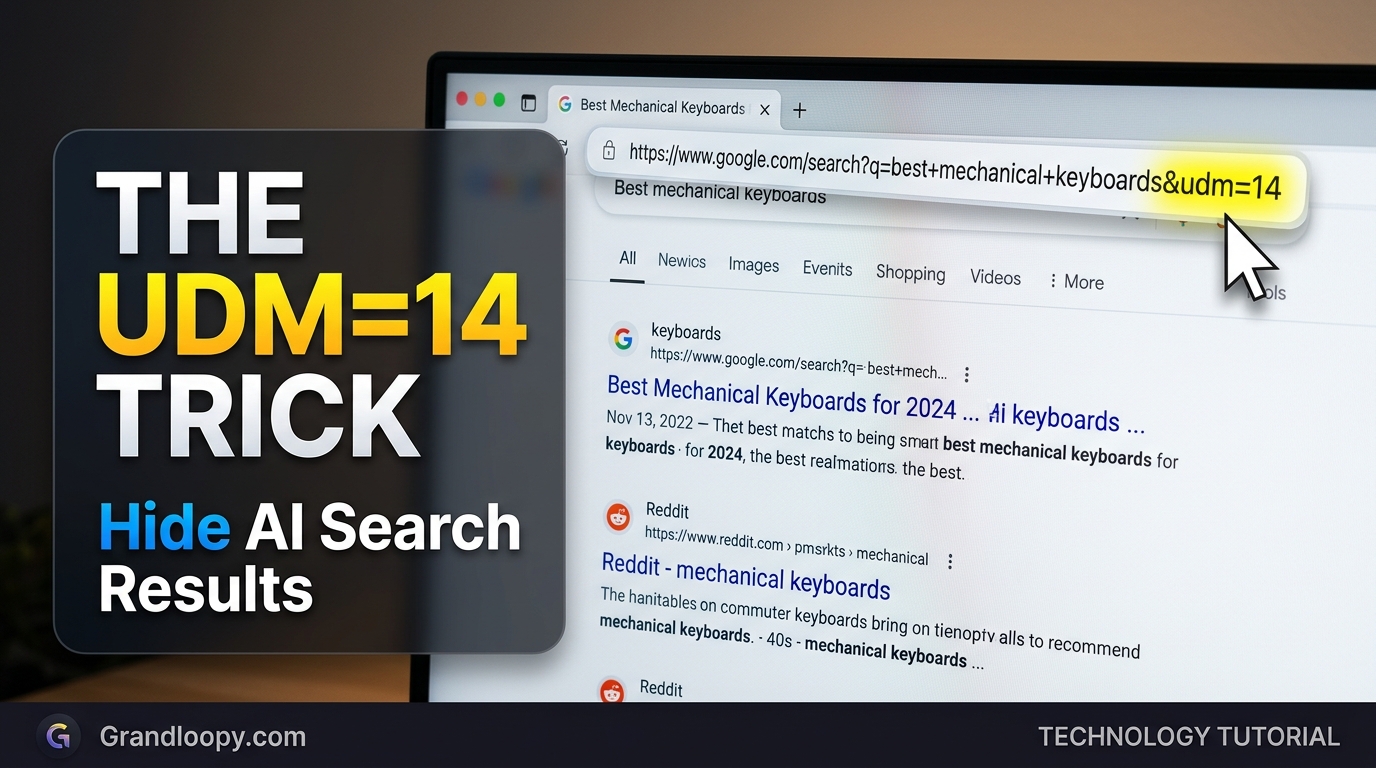
Add &udm=14 to the end of a Google search address, and the page loads straight into the Web filter, per ContentForce.
Number 14 means Web, the same plain view the Web tab gives, per DenebrixAI.
The parameter has been available since May 2024 and continued to work as of January 2026, per Stackmatix, and competitors confirmed it working in October and November 2026.
Stackmatix calls udm=14 a “100% reliable” bypass, an overclaim that is flagged here and never presented as verified, because the parameter is undocumented and Google could change it at any time.
Hand-Typed Steps
Step 1: run a search, then click into the address bar.
Step 2: press End so the cursor sits at the very end of the address, per DenebrixAI.
Step 3: type &udm=14 and press Enter.
Step 4: confirm the page shows plain links only, with no AI Overview box.
The hand-typed trick works in every browser, by editing the address, per Search Engine Roundtable.
Why It Is Undocumented and Could Break
Google has never documented udm=14 as a supported way to remove AI Overviews, per the competitor consensus.
Because none of the workarounds is a true off switch, Google could change how they work at any time, per MAAI Agency, checked November 9, 2026.
Knowing more than one method is therefore the practical advice, per MAAI Agency, so a broken method has a backup.
Re-check udm=14 quarterly, and re-check it immediately if a search suddenly shows the AI box again after using it.
Method 3: The Custom Search Engine (The Permanent Fix)
Point the browser’s address bar at the Web filter, so every search skips AI Overviews automatically, per ContentForce.
The trick is a custom search engine whose address includes udm=14, per ContentForce.
The engine address is https://www.google.com/search?q=%s&udm=14, per TechUnbloated, Trustloud, and DenebrixAI, with %s as the query placeholder.
Search Engine Roundtable gives the same address with the parameters in the other order, https://www.google.com/search?udm=14&q=%s, and both orders load the Web view, per the sources.
The TechUnbloated guide gives the quick answer, the phone table, and the homepage URL method, with steps checked November 15, 2026, and it was verified live on November 17, 2026.
Chrome Desktop Steps
Step 1: open Chrome settings and find the search engine section.
Step 2: add a new search engine, name it Google Web Only, shortcut gw, per DenebrixAI.
Step 3: paste the udm=14 address as the engine URL, per DenebrixAI and TechUnbloated.
Step 4: set the new engine as the default, so every address-bar search opens the Web view.
The setup takes about two minutes in Chrome, per Banthebots.
Firefox Desktop Steps (Firefox 140+)
Firefox 140 and later supports the custom search engine setup, per Banthebots.
Add the udm=14 address as a custom search engine, then select it as the default, per the Banthebots and ContentForce guidance.
Firefox for Android also supports custom search engines, per MAAI Agency and TechUnbloated, with steps in the mobile section below.
Firefox is the best browser for the extension method too, because full uBlock Origin works on Firefox, per Search Engine Roundtable.
Edge and Brave Steps, With the Conflict Labelled
ContentForce and Search Engine Roundtable list Edge and Brave on desktop as supporting the custom search engine method.
Banthebots states the opposite: Microsoft and Opera do not offer an equivalent field for Edge or Opera, per Banthebots.
This is a genuine conflict between sources, and it is never merged here: try the Edge steps, and if no custom URL field exists, use the Web filter, the bookmark, or an extension instead.
Brave on desktop is listed as supported by ContentForce and Search Engine Roundtable, with no contradicting source found.
Safari: No Custom URL, What to Do Instead
Safari cannot use a custom search URL, so the address-bar method has no Safari version, per Banthebots.
Safari takes no custom search address on either a Mac or an iPhone, per Banthebots.
Safari only lets users pick from Apple’s list of search engines, per TechUnbloated.
Safari users must use the Web filter, the bookmark method, or a Safari extension, per MAAI Agency and ModemGuides.
The free udm14 for Safari extension redirects Safari’s Google searches to the Web filter, per TechUnbloated.
TenBlueLinks offers a Safari extension and setup steps for other browsers that build the udm=14 search, per ModemGuides.
Method 4: Browser Extensions That Hide the Box
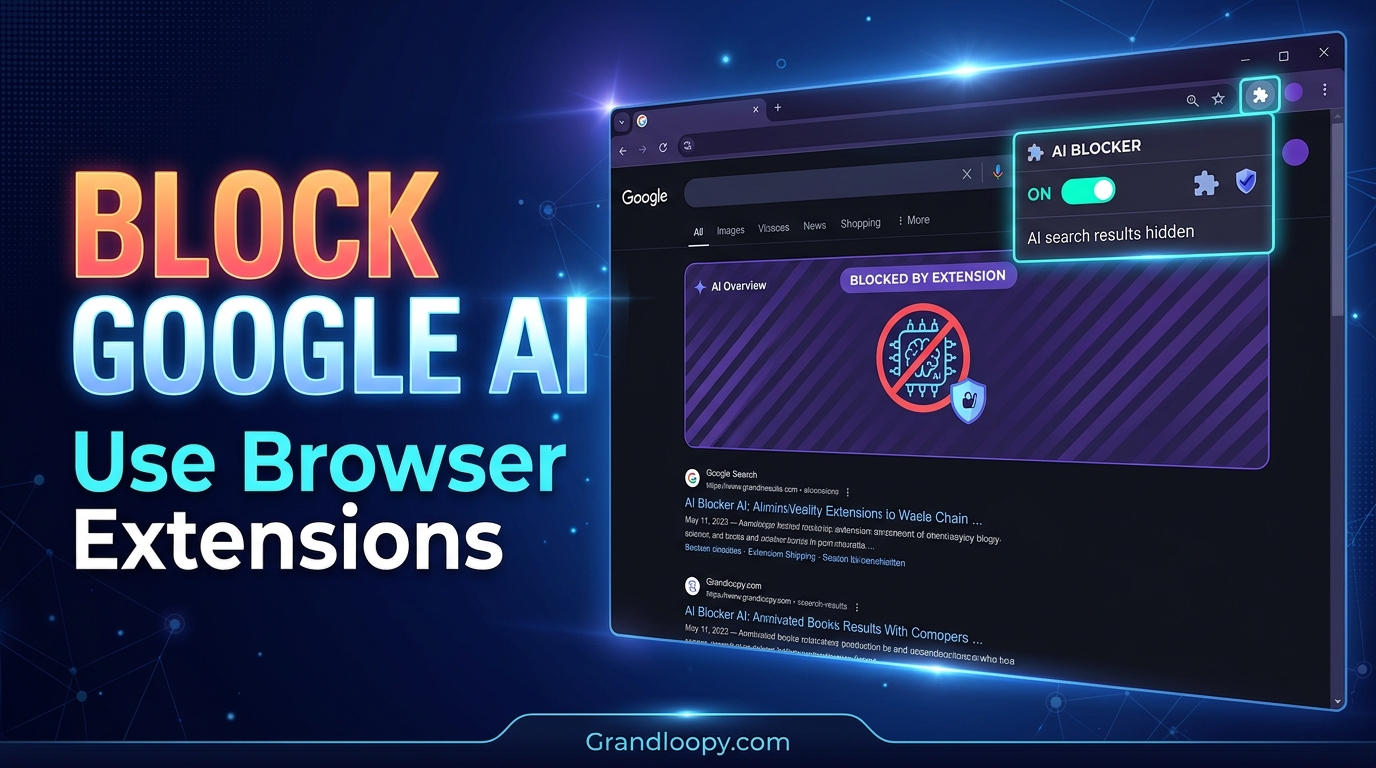
If normal Google results are preferred, with just the AI box deleted, an extension can do it, per TechUnbloated.
Extensions do not stop an AI Overview being generated, per Banthebots: they hide it with CSS once the page has drawn.
Extensions work on the google.com search box as well as the address bar, which the udm=14 method does not, per ModemGuides.
Extensions can break when Google changes its page design, per MAAI Agency, and any extension that reads search pages can see the searches, so choose one from a developer who is trusted.
Bye Bye, Google AI (Stats, Author, Permissions)
The best-known extension on the Chrome Web Store is Bye Bye, Google AI, at 100,000 users and 4.3 stars from 553 ratings, per Banthebots, with the listing showing version 2.12 on June 5, 2026.
Those figures are a June 5, 2026 snapshot, now stale, and they must be re-verified on the store listing before being repeated as current.
Bye Bye, Google AI is a free extension built by Avram Piltch, the editor-in-chief of Tom’s Hardware, per ModemGuides.
It hides AI Overviews and also lets users turn off other result clutter such as video blocks, per ModemGuides.
It is available in the Chrome Web Store, which also covers Edge and other Chromium browsers, and on Mozilla’s add-ons site for Firefox, per ModemGuides.
The extension only needs to read and change Google search pages, per ModemGuides, and that permission prompt should be accepted knowingly.
The Banthebots explainer gives the help-page wording, the extension statistics, and the Safari analysis, and it was verified live on November 17, 2026.
Hide Google AI Overviews (Stats, Open-Source)
Hide Google AI Overviews has 48,036 users and 3.5 stars, per Banthebots, a snapshot that must be re-verified before being repeated as current.
Its source sits in a public GitHub repository, per Banthebots, so anyone can read what it does before installing it.
Open-source code is a trust signal, because the extension’s behavior can be inspected, unlike a closed-source extension.
Both Hide Google AI Overviews and the &udm=14 add-on are listed as working on Firefox for Android, per Banthebots.
The &udm=14 add-on has 10,339 users and takes the redirect approach, adding the parameter to searches rather than hiding anything after the fact, per Banthebots.
AI Overview Hider for Google
AI Overview Hider for Google removes the AI Overview section and leaves the rest of the page alone, per TechUnbloated.
It is the minimal extension option: one job, one section, nothing else changed.
No user count or rating was reported for this extension in the sources checked, and none is invented here.
The CSS-Hiding Mechanism and Why Extensions Break
Extensions hide the AI Overview block with Cascading Style Sheets (CSS) once the page has drawn, per Banthebots.
Google’s page layout uses CSS selectors to identify the AI Overview block, and the extension hides the block matching those selectors.
If Google changes its CSS, the extension must be updated to keep pace, per Banthebots, quoting the extension’s own warning.
A broken extension after a Google layout change is therefore expected behavior, not a bug, and the fix is an extension update, not a settings change.
The uBlock Origin filter for AI Overviews uses the selector google.com##.hdzaWe, dated October 2026, per prior research on this topic, and it must be re-verified before use, because selectors change.
Full uBlock Origin works on Firefox, while Chrome’s Manifest V3 limits it, per Search Engine Roundtable.
Extension Trust: What They Can See
Any extension that reads search pages can see the searches, per MAAI Agency, and that privacy cost must be weighed against the benefit.
Choose an extension from a developer who is trusted, per MAAI Agency, with a public reputation, a public source repository, or both.
Avram Piltch’s Tom’s Hardware role is a trust signal for Bye Bye, Google AI, per ModemGuides, because the author is publicly accountable.
Hide Google AI Overviews’ public GitHub source is a trust signal, per Banthebots, because the code can be read before installing.
Never install an unknown extension that asks for broad permissions beyond reading and changing Google search pages.
Method 5: The -ai Operator (Unreliable)
Typing -ai at the end of a query, for example “best running shoes -ai”, tells Google to leave out results that contain “ai”, per ContentForce.
The -ai operator is the fastest zero-setup method to suppress AI Overviews on any device, per Stackmatix, with no extensions, no account changes, and no browser configuration.
Google never said this would work, and it might stop working next month, per DenebrixAI.
The reliability of -ai is disputed: Stackmatix calls it the fastest method, while ContentForce and Search Engine Roundtable call it unreliable, and both positions are kept here, labelled by source.
How It Works, Per ContentForce
The minus sign is Google’s exclusion operator: it excludes results containing the following term.
Adding -ai therefore excludes results containing “ai”, which can suppress the AI Overview box on some queries.
The mechanism is a side effect, not a designed feature, which is why it is unreliable.
Why It Is Unreliable, By Source
ContentForce lists -ai as low effort but unreliable, in its method table, checked October 20, 2026.
Search Engine Roundtable does not list -ai among its four working methods, checked October 31, 2026, which is itself a signal.
DenebrixAI warns that Google never endorsed the trick and it might stop working, per the same source.
Use -ai as a backup, never as the primary method, and use the Web filter or udm=14 when the box must stay gone.
Method 6: Switch Search Engines
If no AI at all is wanted, a search engine with a real off switch is the cleaner fix, per Trustloud.
DuckDuckGo is the easiest alternative, per Trustloud, because it has a settings toggle and a dedicated no-AI address.
Switching engines removes Google AI entirely, not just the Overview box, which is the only truly permanent fix.
DuckDuckGo: Search Assist Never, Duck.ai Off, noai Address
Go to Search Settings, then AI Features, set Search Assist to Never, turn off Duck.ai, and select Save and Exit, per Trustloud, citing DuckDuckGo’s help pages, checked November 13, 2026.
DuckDuckGo Help is named in plain text here and not linked, because its AI features help page returned a generic homepage title to a direct check on November 17, 2026, not the specific page.
Search from noai.duckduckgo.com, which turns off all of DuckDuckGo’s AI features, per TechUnbloated.
The noai address is a search address to type, not a settings page, and it is given here as plain text for typing, not as a hyperlink.
The Trustloud guide gives the method table, the DuckDuckGo steps, and the Google help-page note, with steps checked November 13, 2026, and it was verified live on November 17, 2026.
Brave Search and Kagi
Brave Search and Kagi show fewer or no AI summaries, per Stackmatix, a claim labelled by source and never presented as verified.
Brave Search is the default in the Brave browser, and Kagi is a paid search engine, per the general knowledge of both products.
Switching to Brave or Kagi is a bigger change than the Web filter, because it changes the entire search experience, not just the AI box.
TenBlueLinks
TenBlueLinks adds a Google Web option to Chrome’s search engine list on Android and iPhone, per TechUnbloated.
TenBlueLinks offers a Safari extension and setup steps for other browsers that build the udm=14 search, per ModemGuides.
Bookmarking tenbluelinks.org on a home screen gives instant AI-free Google searches, per Stackmatix.
TenBlueLinks is a third-party tool, and its trust must be weighed like any extension’s: read what it does before installing it.
Mobile: iPhone and Android
Phones are where this gets janky, per TechUnbloated: mobile Chrome will not let users type in a custom search URL, and Safari only lets users pick from Apple’s list.
Phones offer fewer settings, but AI Overviews can still be avoided, per MAAI Agency.
The mobile methods below are per device and per browser, because no single mobile method works everywhere.
The Mobile Table
| Phone and browser | How to get the Web filter by default | Effort |
|---|---|---|
| Chrome on Android | Menu, Settings, Homepage, Enter custom web address, paste the homepage URL, then search from the homepage | One minute |
| Chrome on iPhone | Open the homepage URL, bookmark it, start searches from that bookmark | One minute |
| Firefox on Android | Search engine icon, Search settings, Default search engine, Add search engine, paste the udm=14 URL, Save, select as default | Two minutes |
| Safari on iPhone | Open the homepage URL, Share, Add to Home Screen, or bookmark it, start searches from there | One minute |
| Firefox on iPhone | Add the udm=14 URL as a custom search engine, per ModemGuides | Two minutes |
| Google app | Web filter only, no setting removes AI Overviews | One click per search |
| Android search bar | No control available | None |
The table combines the TechUnbloated phone table, checked November 15, 2026, with the MAAI Agency and ModemGuides mobile sections.
The homepage URL is https://www.google.com/search?q=+&udm=14, per TechUnbloated: Google’s own URL, with nothing third-party involved.
The homepage URL opens an empty results page with the Web filter already on, per TechUnbloated.
iPhone Safari: Bookmark and Home Screen
Use the Web filter after each search, in Safari, Chrome, or the Google app, per MAAI Agency.
Save the udm=14 bookmark and add it to the home screen through Safari’s Share menu for one-tap access, per MAAI Agency.
Install a Safari extension that redirects Google searches to the Web view, through Settings, then Safari, then Extensions, per MAAI Agency.
Safari on iPhone cannot take a custom search URL, per Banthebots, so the bookmark and extension methods are the only permanent options.
iPhone Chrome: Bookmark, With the Custom-Engine Conflict Labelled
Open the homepage URL, bookmark it, and start searches from that bookmark, per TechUnbloated.
Stackmatix gives different steps: open Chrome, tap the three-dot menu, go to Settings, then Search Engine, set the URL to the udm=14 address, and set it as the default.
This is a genuine conflict: Stackmatix says Chrome on iPhone accepts a custom engine URL, while TechUnbloated and MAAI Agency say mobile Chrome will not let users type one.
The conflict is never merged here: try the Stackmatix steps, and if no custom URL field exists, use the bookmark method, which is confirmed by TechUnbloated and MAAI Agency.
iPhone Firefox: Custom Engine
Install Firefox for iOS, which allows custom search engines, and add the udm=14 URL there, per ModemGuides.
Firefox for iOS is the permanent fix on iPhone for readers willing to switch browsers, per ModemGuides.
Android Chrome: Homepage URL, Sync Pickup Claim Labelled
Chrome on Android does not let users type a custom search engine address, per MAAI Agency, so save the udm=14 bookmark to the home screen instead.
Set the browser’s homepage to the homepage URL and search from that page, per TechUnbloated.
ModemGuides states a different mechanism: Chrome for Android picks up the custom search engine created on desktop if the user is signed in and syncing.
Both claims are kept, labelled by source, and they are compatible: typing is blocked, but sync pickup may work.
Try the desktop setup plus sync, and fall back to the homepage method if it does not work.
Android Firefox: Custom Engine
Firefox for Android supports custom search engines, per MAAI Agency and TechUnbloated.
Go to Settings, then Search, then Default search engine, then add the udm=14 URL, per MAAI Agency, following Mozilla’s steps, per TechUnbloated.
Tap the search engine icon in the address bar, then Search settings, then Default search engine, then Add search engine, paste the URL, tap Save, then select it as default, per TechUnbloated.
Google App and Android Search Bar: No Control
The Google app itself has no setting to remove AI Overviews, per MAAI Agency.
No control is available in the Google app or the Android search bar, per ModemGuides: the Web filter is the only option inside the app.
None of the browser methods touches the Google app or the search bar on an Android home screen, per TechUnbloated.
Readers who search from the Google app or the home screen bar must use the Web filter after each search, or switch to a browser, because no permanent fix exists for those surfaces.
AI Mode: A Separate Problem
AI Mode is a separate tab and there is no setting that removes it, per ContentForce.
There is no setting that removes the AI Mode tab, so a true AI Mode off switch does not exist yet, per DenebrixAI.
AI Mode and AI Overviews are different surfaces: the Overview is a box on the main results page, while AI Mode is a separate tab with a conversational experience.
Removing the Overview box with the Web filter does not remove the AI Mode tab, and removing the AI Mode tab does not remove the Overview box.
No Setting Removes the AI Mode Tab
The honest truth about turning off AI Mode is that no setting removes the tab, per DenebrixAI.
The best workaround is the Web tab or the udm=14 default search engine, per DenebrixAI, which avoids both surfaces at once.
Prior research on this topic recorded Chrome flag and right-click methods for the AI Mode omnibox button, with the warning that flags reset after updates, and those methods must be re-verified before use.
How to Exit AI Mode, By Surface
Exit AI Mode in the Google app via the gear icon, per prior research on this topic, re-verify before use.
On desktop, right-click the AI Mode button and uncheck the always-show option, per prior research on this topic, re-verify before use.
The chrome://flags AI Mode omnibox entrypoint can be set to Disabled, per prior research on this topic, with the warning that flags reset after Chrome updates.
Every AI Mode exit method is labelled as prior research here, because no competitor in the November 17, 2026 search confirmed the current steps.
Labs Traps: What Not to Enable
Search Labs is Google’s opt-in area for experimental features, per Search Engine Roundtable.
Labs is Google’s “testbed for innovation,” per TechUnbloated, and its toggles cover experiments, not core features.
Two Labs traps catch readers who think a Labs toggle will remove AI Overviews, and both are explained below.
The “AI in Search” Toggle: Experiments Only
Search Labs has a toggle called “AI in Search,” but Google describes Labs as a testbed for new experiments, not a switch for AI Overviews, per Trustloud.
Turning the Labs toggle off only opts out of experiments, per TechUnbloated, and it will not touch AI Overviews, because Google files them under core Search.
Open labs.google.com/search/manage while signed in and turn the experiments off, and Google will not enroll the account in future AI Search experiments, per TechUnbloated.
The Labs manage URL is given here as plain text for typing, not as a hyperlink, because it is an account page that requires sign-in.
DenebrixAI names a Labs experiment called “AI Overviews and more,” and states that Google says turning that experiment off will not disable all AI Overviews.
The Labs toggle conflict from prior research is preserved: one source said a Search Labs AI Mode toggle exists.
Another source said it was removed for most users as of 2026, and both positions stay labelled by source.
Web Guide: Adds AI Summaries to the Web Tab
Labs has an experiment called Web Guide that adds AI summaries to the Web tab, per Search Engine Roundtable.
If a user joins Labs and enables Web Guide, the one view this guide relies on stops being clean, per Search Engine Roundtable.
Web Guide is the most dangerous trap in this guide, because it silently undoes the Web filter method.
Check Labs settings at labs.google.com/search/manage and confirm Web Guide is off, if the Web filter suddenly shows AI summaries.
Stackmatix lists “Web Guide mode in Search Labs” as a method to suppress Overviews, a claim that directly contradicts Search Engine Roundtable, and it is flagged here as a trap, never presented as verified.
Website Owners: How to Opt Out
Website owners can opt out of AI Overviews even though searchers cannot, per ContentForce.
The opt-out section below is for site owners, not searchers, and it covers two separate mechanisms that must never be merged.
Search Console Generative AI Setting
Google added a “Search generative AI” setting to Search Console that lets a site exclude itself from AI Overviews, AI Mode, and generative AI features in Discover, per ContentForce.
The setting is a Google product control, available in Search Console, and it applies to the site’s content in Google’s AI search features.
No step-by-step for the setting was reported in the sources checked, and none is invented here: open Search Console and look for the generative AI setting.
CMA June 3, 2026 Ruling (UK, Label by Country)
On June 3, 2026, the UK’s Competition and Markets Authority (CMA) required Google to let website owners opt out of having their content used in its AI search features, per MAAI Agency.
The CMA ruling is a UK regulator requirement, labelled by country here, and it is distinct from Google’s Search Console setting.
The ruling and the setting must never be merged: one is a regulator’s requirement, the other is a product control, and they may have different scopes and dates.
MAAI Agency’s guide is framed for businesses deciding whether to opt out, per the same source, and the business decision, traffic vs control, is outside this guide’s scope.
Troubleshooting: When a Method Stops Working
Every method in this guide can stop working, because Google changes Search without notice, and the table below gives the first fix for each failure.
| Failure | Likely cause | First fix | Source |
|---|---|---|---|
| Web filter missing | Hidden under More, or menu updated | Open More, click Web; re-check the help page note on updating settings | ContentForce, Trustloud |
| Web filter shows AI summaries | Web Guide enabled in Labs | Open labs.google.com/search/manage, turn Web Guide off | Search Engine Roundtable |
| udm=14 stops working | Google changed the parameter, or a typo | Re-type the address exactly; fall back to the Web filter; re-check quarterly | Competitor consensus |
| Custom engine stops working | Browser update reset the default, or sync overwrote it | Re-check the default engine setting; re-add the udm=14 address | General browser behavior |
| Extension stops working | Google changed its CSS selectors | Update the extension; if no update exists, switch to the Web filter method | Banthebots |
| -ai stops working | Google changed the operator behavior, or the query needs “ai” in results | Use the Web filter or udm=14 instead; -ai was never reliable | DenebrixAI, ContentForce |
| AI Overview in Google app | No setting exists for the app | Use the Web filter inside the app, or switch to a browser | ModemGuides, MAAI Agency |
| AI Overview on Android search bar | No control exists for the bar | Search from a browser instead of the bar | TechUnbloated, ModemGuides |
Web Filter Missing
If Web is not visible, open More and pick it from the list, per ContentForce, TechUnbloated, and DenebrixAI.
If Web is missing from More too, Google may have updated its menus, per the help-page note reported by Trustloud, and the help page should be re-read.
udm=14 Stops Working
Re-type the address exactly, because a single wrong character breaks the parameter.
If the exact address fails, Google may have changed the parameter, per the undocumented warning, and the Web filter is the fallback.
Extension Breaks
If Google changes its CSS, the extension must be updated to keep pace, per Banthebots.
Check the extension store listing for an update, and if none exists, switch to the Web filter or custom engine method.
Web Guide Enabled by Accident
Open labs.google.com/search/manage, find Web Guide, and turn it off, per Search Engine Roundtable.
Confirm the Web filter shows plain links only again, with no AI summaries, after turning Web Guide off.
What the Competitors Got Wrong or Left Unsaid
Stackmatix calls udm=14 “100% reliable,” an overclaim flagged here, because the parameter is undocumented and Google could change it at any time.
Stackmatix claims Safari and Firefox show fewer AI Overviews because Safari is not a Google-owned browser, an unverified claim flagged here and never presented as fact.
Stackmatix lists Web Guide as a suppression method, contradicting Search Engine Roundtable.
Search Engine Roundtable says Web Guide adds AI summaries to the Web tab, and that position is the one to trust, because it names the mechanism.
No competitor combined per-browser desktop steps, per-device mobile steps, extension stats, uBlock, Labs traps, opt-out, and troubleshooting in one page, and this guide does.
No competitor stated the “what you lose” trade-off of the Web filter prominently, and this guide does, because readers who lose knowledge panels should know before they switch.
Related Guides on This Site
This site covers how to turn off Google AI, a different question from this page.
That guide covers AI Overviews, Gemini, AI Mode, Gmail, and the Android Assistant, while this page owns the AI Overview box in Search only.
This site covers how AI uses water, a different question from this page: the real numbers behind AI’s water use, per prompt to 2030, while this page owns turning off the AI Overview box.
This site covers who owns Claude AI, a different question from this page: Anthropic explained, including its funding and ownership, while this page owns Google’s AI Overview box.
This site covers whether Outlier AI is legit, a different question from this page: a 2026 review of the AI training work platform, while this page owns turning off Google’s AI Overview box.
All four internal links were curl-verified live with real titles on November 17, 2026, before this article was written.
Frequently Asked Questions
1. Can you turn off AI Overview?
No, not with a setting: Google’s help page says AI Overviews are a core Search feature that cannot be turned off.
Workarounds stop the box from appearing, per this guide, but none is an official off switch.
2. Is there a way to turn off AI Overview?
Yes, six workarounds exist: the Web filter, udm=14, a custom search engine, an extension, the -ai operator, and switching search engines.
The Web filter is the only method Google documents, per ContentForce.
3. Why can’t I turn off AI Overview?
Because Google calls AI Overviews a core Search feature, like knowledge panels, and features cannot be turned off, per Google’s help page.
Google is also expanding ads inside AI Overviews and AI Mode, per the October 28, 2026 earnings call reported by ModemGuides.
4. What is the Web filter?
The Web filter displays only text-based links without features like AI Overviews, per Google’s help page.
It is found in the row of tabs under the search bar, sometimes hidden under More.
5. Does the Web filter remove AI Overview?
Yes, for one search: clicking Web reloads the page with plain links and no AI box, per ContentForce.
The next address-bar search returns the usual AI-heavy page, per DenebrixAI.
6. Does the Web filter remove anything besides AI Overview?
Yes: knowledge panels, featured snippets, and other search features also disappear, because the filter shows links only.
The trade-off must be weighed before making the Web view the default.
7. What is udm=14?
udm=14 is a URL parameter that opens the Web filter view directly, per DenebrixAI and ContentForce.
Number 14 means Web, per DenebrixAI, and the parameter has been available since May 2024, per Stackmatix.
8. Does udm=14 still work?
Yes, as of the November 15, 2026 check by TechUnbloated, and the November 13, 2026 check by Trustloud.
It is undocumented, so re-check it quarterly and keep a backup method ready.
9. Is udm=14 official?
No: Google has never documented udm=14 as a supported way to remove AI Overviews, per the competitor consensus.
Stackmatix’s “100% reliable” claim is an overclaim, flagged here and never presented as verified.
10. How do I make udm=14 my default search?
Add a custom search engine with the address https://www.google.com/search?q=%s&udm=14 and set it as the default, per TechUnbloated and Trustloud.
The setup takes about two minutes in Chrome, per Banthebots.
11. Can I turn off AI Overview in Chrome?
Yes, on desktop: add the udm=14 custom engine and set it as the default, or install an extension, per this guide.
On mobile Chrome, use the homepage URL or bookmark method, because mobile Chrome will not let users type a custom URL, per TechUnbloated.
12. Can I turn off AI Overview in Firefox?
Yes: Firefox 140 and later supports custom search engines, per Banthebots, on desktop and Android.
Firefox is also the best browser for uBlock Origin, because full uBlock Origin works on Firefox, per Search Engine Roundtable.
13. Can I turn off AI Overview in Safari?
Not with a custom engine: Safari takes no custom search address on Mac or iPhone, per Banthebots.
Use the Web filter, a bookmark, or a Safari extension such as udm14 for Safari, per MAAI Agency, ModemGuides, and TechUnbloated.
14. Can I turn off AI Overview in Edge?
ContentForce and Search Engine Roundtable list Edge as supporting the custom engine method, while Banthebots says Edge offers no equivalent field.
The conflict is never merged here: try the steps, and fall back to the Web filter, bookmark, or extension if no field exists.
15. Can I turn off AI Overview on my iPhone?
Yes, with limits: use the Web filter, a bookmark, a home screen shortcut, or Firefox for iOS with a custom engine, per MAAI Agency, TechUnbloated, and ModemGuides.
Safari on iPhone cannot take a custom search URL, per Banthebots.
16. Can I turn off AI Overview on Android?
Yes, with limits: use the homepage URL, a bookmark, or Firefox for Android with a custom engine, per TechUnbloated and MAAI Agency.
Chrome on Android cannot type a custom URL, per MAAI Agency, but may pick up a desktop engine via sync, per ModemGuides.
17. Can I turn off AI Overview in the Google app?
No: the Google app has no setting to remove AI Overviews, per MAAI Agency and ModemGuides.
The Web filter is the only option inside the app, per ModemGuides.
18. Does -ai remove AI Overview?
Sometimes: -ai excludes results containing “ai”, which can suppress the box on some queries, per ContentForce.
It is unreliable, per ContentForce, and Google never endorsed it, per DenebrixAI, so use it as a backup only.
19. Does signing out remove AI Overviews?
No: signed-out tests in October 2026 still showed AI Overviews, per prior research on this topic.
Signing out is not a fix, and the Web filter or udm=14 should be used instead.
20. What is Bye Bye, Google AI?
Bye Bye, Google AI is a free extension built by Avram Piltch, the editor-in-chief of Tom’s Hardware, per ModemGuides.
It had 100,000 users and 4.3 stars from 553 ratings, version 2.12, on June 5, 2026, per Banthebots, a snapshot to re-verify.
21. What can an AI Overview extension see?
Any extension that reads search pages can see the searches, per MAAI Agency.
Choose an extension from a trusted developer, with a public reputation or public source code, per MAAI Agency and Banthebots.
22. Why did my extension stop working?
Google likely changed its CSS selectors, and the extension must be updated to keep pace, per Banthebots.
Check for an extension update, and fall back to the Web filter method if none exists.
23. What is the difference between AI Overviews and AI Mode?
AI Overviews are a box on the main results page, while AI Mode is a separate tab with a conversational experience, per ContentForce and DenebrixAI.
No setting removes the AI Mode tab, per DenebrixAI, and the Web filter avoids both surfaces at once.
24. Does the Labs “AI in Search” toggle turn off AI Overviews?
No: the toggle covers experiments only, per TechUnbloated, Trustloud, and Search Engine Roundtable.
Turning it off opts out of future experiments, per TechUnbloated, and it will not touch core AI Overviews.
25. Can website owners opt out of AI Overviews?
Yes: Google added a “Search generative AI” setting to Search Console, per ContentForce, and the UK CMA required an opt-out on June 3, 2026, per MAAI Agency.
The two mechanisms are separate and must never be merged: one is a product control, the other is a UK regulator requirement.
Conclusion
How to turn off AI Overview has no official answer, because Google calls AI Overviews a core Search feature that cannot be turned off.
The six workarounds in this guide stop the box from appearing, and the Web filter is the only method Google documents.
The custom search engine is the most permanent fix on desktop, the bookmark and homepage methods are the most permanent on mobile, and extensions are the most convenient where they work.
The conflicts in this guide, Edge, Chrome on iPhone, Chrome on Android sync, and -ai reliability, are labelled by source and never merged, because honest conflicts beat false certainty.
The Labs traps, the “AI in Search” toggle and Web Guide, must be avoided, because one does nothing and the other undoes the Web filter.
The extension trust rules matter, because any extension that reads search pages can see the searches, and only trusted developers should be given that access.
The earnings-call context explains why no off switch is coming: Google is expanding ads inside AI Overviews and AI Mode, per the October 28, 2026 call reported by ModemGuides.
Every method in this guide was last checked by competitors between October 20 and November 15, 2026, and every method must be re-checked quarterly, because Google changes Search without notice.
The last checked date for this article is November 17, 2026, and the links in it were curl-verified live with real titles on that date.
Readers who want the broad guide, covering Gemini, AI Mode, Gmail, and the Android Assistant alongside AI Overviews, should read the related guide linked above, which answers a different question from this page.