Why Is My Phone Battery Draining Faster After an Update?
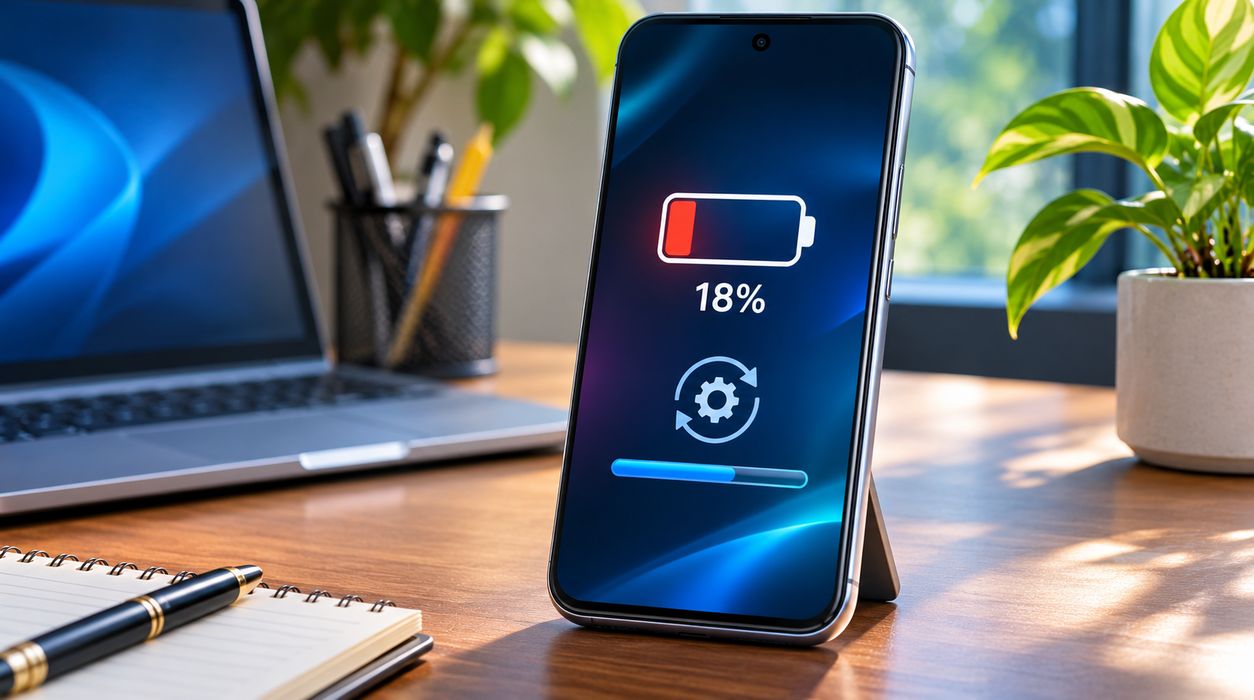
You install the latest software update on your smartphone, expecting improved performance, new features, and better security. Instead, you notice something frustrating: your phone battery is draining much faster than before.
Perhaps your iPhone previously lasted an entire day but now needs charging by lunchtime. Or your Android phone loses a surprising amount of battery even when you are barely using it.
If you are experiencing phone battery draining after update problems, there is some good news. A temporary increase in battery consumption can be normal after a major software update, and many common causes can be addressed without replacing your phone.
Both Apple and Google acknowledge that background processes following software updates can temporarily affect battery life.
However, not every battery problem is temporary. Sometimes an incompatible app, an unexpected setting, or an aging battery is responsible.
This guide explains why battery drain happens after an update, nine practical ways to improve battery life, and when you should investigate a possible hardware problem.
Quick Answer: Why Is My Phone Battery Draining After an Update?
Your phone may use more battery after an update because it is completing background tasks, optimizing apps, processing files, or adjusting system behavior.
Common causes include:
- Background software optimization
- Increased app activity
- Changes to battery settings
- Higher screen brightness or refresh rates
- Location services running frequently
- Poor cellular signal
- App compatibility problems
- Battery aging
- Software bugs introduced by an update
The first thing to try: Restart your phone, check battery usage, and allow a few days for post-update background activity to settle.
If battery life remains unusually poor, follow the troubleshooting steps below.
Why Software Updates Can Temporarily Increase Battery Usage
A software update does more than change the appearance of your phone.
It can modify system components, update security features, introduce new functionality, and trigger background processing.
Background Tasks Continue After Installation
Even when your phone displays a message saying the update is complete, some activities may continue.
Depending on the device and update, these can include:
- Processing photo libraries
- Updating search indexes
- Optimizing applications
- Synchronizing account information
- Completing device setup
- Rebuilding certain system data
These activities require processing power, which consumes energy.
Apple explains in its official iPhone battery troubleshooting guide that background tasks following an update can temporarily affect battery life and thermal performance.
Google provides similar guidance for Pixel phones.
Your Phone May Feel Warmer Than Usual
Additional background processing can produce heat.
A slightly warmer phone during intensive activity does not automatically indicate a serious problem.
However, excessive heat, repeated overheating warnings, or a device that becomes uncomfortable to hold should not be ignored.
If your phone becomes unusually hot, stop demanding activities, disconnect the charger if appropriate, and allow the device to cool in a safe environment.
1. Wait a Few Days After the Software Update
One of the simplest fixes is patience.
If you installed a major operating system update within the last day or two, your phone may still be performing background optimization.
This is especially relevant when you have a large photo library, numerous applications, or significant amounts of stored data.
What You Should Do
- Use your phone normally for the next few days.
- Keep your applications updated.
- Avoid running demanding games or unnecessary background tasks.
- Monitor battery consumption in Settings.
- Compare battery life after background activity settles.
Do not repeatedly reset your phone simply because the battery drains faster immediately after an update.
A reset can introduce additional setup and optimization work.
How Long Should You Wait?
For many devices, a few days is a reasonable initial observation period.
The exact duration depends on the update, device, applications, and background activity.
If the problem continues or becomes severe, investigate rather than waiting indefinitely.
2. Restart Your iPhone or Android Phone
Restarting your phone is a useful early troubleshooting step.
A restart can stop temporary processes, reload system services, and resolve some minor software problems.
It will not repair a worn-out battery or fix every software bug, but it is simple and generally low-risk.
How to Restart an iPhone
On many iPhones with Face ID:
- Press and hold a volume button and the side button.
- Wait for the power-off slider.
- Slide to turn off the device.
- Wait approximately 30 seconds.
- Press and hold the side button to turn it on.
The procedure differs for some older models.
How to Restart an Android Phone
The process depends on the manufacturer.
On many Android devices, you can press and hold the power button or use the appropriate power-button combination, then select Restart.
After restarting, monitor battery usage for several hours under normal conditions.
3. Check Which Apps Are Draining Your Battery
Sometimes the operating system update is not directly responsible.
An application may be consuming more energy than expected.
This can happen when an app has a compatibility issue, performs excessive background activity, or frequently accesses location services.
Check Battery Usage on iPhone
- Open Settings.
- Tap Battery.
- Review the battery usage chart.
- Look for applications using unusually high amounts of energy.
- Compare screen-active and background activity where available.
Pay attention to apps that consume significant battery power even when you rarely open them.
Check Battery Usage on Android
On many Android devices:
- Open Settings.
- Select Battery.
- Tap Battery usage.
- Review app and system battery consumption.
- Investigate unusual activity.
The exact menu names depend on your Android version and manufacturer.
Google’s Pixel battery troubleshooting guide provides device-specific instructions for identifying battery-intensive applications.
What If One App Uses Too Much Battery?
Try updating the application first.
If the problem continues, review its background activity permissions.
You can also contact the app developer or temporarily uninstall an unnecessary app.
Be careful when deleting applications that store important local data.
4. Update All Your Installed Applications
An operating system update can change how applications interact with system features.
Developers may release compatibility updates to improve performance or resolve bugs.
Running outdated applications can sometimes contribute to excessive battery consumption.
Update Apps on iPhone
- Open the App Store.
- Tap your account profile.
- Find available app updates.
- Update the relevant applications.
Update Apps on Android
- Open Google Play Store.
- Tap your profile icon.
- Select Manage apps & device.
- Review available updates.
- Update your applications.
If one application appears responsible for abnormal battery consumption, check whether its developer has published a relevant fix.
5. Reduce Screen Brightness and Display Power Usage
Your smartphone display is often a major contributor to battery consumption.
A bright screen, long screen timeout, or high refresh rate can increase energy usage.
Some updates may introduce or change display features, although settings do not necessarily change with every update.
Reduce Screen Brightness
Lower the brightness to a comfortable level.
Automatic brightness can also help your phone adjust to different lighting conditions.
Shorten Screen Timeout
Set the screen to turn off sooner when you are not using it.
For example, a 30-second timeout may use less energy than leaving the screen active for several minutes.
Review Refresh Rate Settings
Some smartphones support 90Hz, 120Hz, or other high refresh rates.
Higher refresh rates can make scrolling feel smoother but may increase power consumption under certain conditions.
If your phone supports adjustable refresh rates, consider an adaptive or lower setting when battery life is a priority.
Does Dark Mode Save Battery?
Dark mode can reduce display power consumption on many OLED screens, particularly when large portions of the display are black.
The benefit depends on screen technology, brightness, and content.
Dark mode is not a guaranteed solution for every device.
6. Turn On Battery Saver or Low Power Mode
Battery-saving features can reduce energy consumption by limiting certain background activities.
These settings are particularly useful when you need your phone to last longer between charges.
Enable Low Power Mode on iPhone
Depending on your iOS version, open Settings and locate the Low Power Mode option under Battery or Power Mode.
You can also access it through Control Center when configured.
Low Power Mode may reduce background refresh, visual effects, and other activities.
Enable Battery Saver on Android
On many Android phones:
- Open Settings.
- Select Battery.
- Tap Battery Saver or Power Saving.
- Enable the feature.
The name and available options vary by manufacturer.
Battery Saver may affect background synchronization, notifications, performance, or network behavior.
For additional guidance, Google’s Android battery-saving recommendations explain several settings that can extend battery life.
Should You Leave Battery Saver On All Day?
You can use it when needed, but understand the tradeoffs.
Some notifications or background activities may be delayed.
If you rely on immediate alerts from particular applications, review their behavior before making battery-saving restrictions permanent.
7. Review Background Activity and Location Permissions
Background activity allows applications to perform certain tasks even when they are not open on the screen.
Examples include:
- Checking for new messages
- Updating weather information
- Synchronizing cloud data
- Refreshing content
- Tracking location when permitted
These features can be useful, but unnecessary background activity may contribute to battery drain.
On iPhone
Review Background App Refresh and Location Services in Settings.
Consider restricting background access for applications that do not need frequent updates.
On Android
Review individual app battery settings and location permissions.
For many applications, allowing location access only while the app is in use may be sufficient.
However, navigation, safety, tracking, and other location-dependent applications may require broader permissions.
Avoid disabling essential services without understanding their purpose.
Why Accurate Settings Descriptions Matter
Phone settings often contain similar terms that describe different functions.
For example, the difference between constant and consistent activity can be important when describing whether an app runs continuously or behaves predictably.
Grandloopy’s guide to constant vs. consistent explains this distinction in everyday English.
Understanding these differences can make technical instructions easier to follow.
8. Check Your Cellular Signal and Network Settings
Poor cellular reception can increase battery consumption.
When your phone struggles to maintain a reliable connection, it may need to work harder to communicate with nearby cellular networks.
This is particularly noticeable in locations with weak coverage.
What You Can Try
- Use a reliable Wi-Fi network when available.
- Check whether the problem occurs only in certain locations.
- Review cellular network settings.
- Consider automatic network options when supported.
- Turn off an unnecessary mobile hotspot.
If your phone supports 5G Auto or an equivalent adaptive setting, it may help balance connectivity and power consumption.
Do not assume that disabling 5G always produces a major battery improvement. Results depend on network conditions and the device.
Avoid Unnecessary Network Resets
Resetting network settings can remove saved Wi-Fi configurations and other preferences.
It should generally be considered only after simpler troubleshooting steps fail.
9. Check Battery Health and Look for Additional Software Updates
If battery drain continues after several days, investigate battery condition and available software fixes.
Smartphone batteries gradually lose capacity through aging and use.
An update may make an existing battery problem more noticeable without being its original cause.
Check Battery Health on iPhone
On supported iPhones, open Settings and look for Battery Health information.
Depending on the model and iOS version, you may see:
- Maximum battery capacity
- Battery condition information
- Charging details
- Service recommendations
A substantially degraded battery may provide shorter runtime even when the software is functioning normally.
Check Battery Health on Android
Battery health features vary considerably across Android devices.
Some phones provide battery diagnostics or capacity information directly in Settings.
Others require manufacturer-specific support tools.
Avoid relying on unknown third-party applications that claim to restore battery capacity instantly.
Check for a New Software Fix
Manufacturers sometimes release follow-up updates to address problems discovered after a major release.
Open your device’s software update settings and check whether a newer version is available.
Read the release notes when possible.
If a software fix specifically addresses battery performance, installing it may help.
iPhone vs. Android: Battery Drain After an Update
Although iPhone and Android devices share several causes of battery drain, troubleshooting menus and optimization features differ.
| Problem | iPhone | Android |
|---|---|---|
| Background activity | Review Battery and Background App Refresh | Review Battery usage and app optimization |
| Battery-saving feature | Low Power Mode | Battery Saver or Power Saving |
| Battery health | Available on supported models | Varies by manufacturer |
| App updates | App Store | Google Play Store |
| Display power use | Brightness and display settings | Brightness and refresh rate settings |
| Software fixes | iOS updates | Android and manufacturer updates |
The best solution depends on your specific device rather than the operating system alone.
How to Tell Whether Battery Drain Is Normal or a Serious Problem
Temporary battery drain after an update is different from persistent abnormal consumption.
Signs That May Be Temporary
- The update was installed recently.
- Battery life is gradually improving.
- Your phone is completing setup or synchronization.
- Battery usage charts show expected activity.
- The device is not experiencing dangerous heat or physical damage.
Signs That Need Further Investigation
- Battery life remains much worse after several days.
- The phone shuts down unexpectedly.
- Battery percentage changes abnormally.
- The device repeatedly overheats.
- Battery health indicates service may be needed.
- The phone shows signs of swelling or physical damage.
If the battery appears swollen, stop using or charging the device and seek qualified service. Do not attempt to puncture, compress, or repair a swollen battery yourself.
Should You Factory Reset Your Phone After an Update?
A factory reset should generally be a last resort.
It removes personal data and settings from the device.
Although it can resolve some persistent software problems, it is not guaranteed to fix battery drain.
Before considering a reset:
- Restart the phone.
- Update applications.
- Check battery usage.
- Review power settings.
- Install available software fixes.
- Back up important data.
- Contact the manufacturer’s support team if the problem persists.
If a reset is necessary, follow the official instructions for your device.
Why Clear Troubleshooting Instructions Matter
Technical instructions should use precise wording so readers understand exactly what action to perform.
For example, Grandloopy’s article about onsite vs. on-site demonstrates how spelling and formatting choices can affect professional communication.
Similarly, its explanation of authorized or authorised can help readers recognize differences between American and British English in technical support materials.
For this guide, American English terminology is used wherever possible.
How to Prevent Battery Problems After Future Updates
You cannot prevent every software issue, but a few habits can make future updates easier to manage.
Keep Important Apps Updated
Application updates may include compatibility improvements and bug fixes.
Maintain Enough Available Storage
Avoid keeping your phone’s storage completely full.
Adequate free space can help with downloads, updates, and routine system operations.
Review Battery Usage Regularly
Checking battery usage occasionally makes it easier to recognize unusual changes.
Avoid Excessive Heat
High temperatures can affect battery performance and contribute to long-term battery degradation.
Avoid leaving your phone in a hot car or direct sunlight for extended periods.
Install Updates From Trusted Sources
Use your device’s official software update mechanism.
Avoid unofficial firmware packages unless you fully understand the risks and compatibility requirements.
Keep a Backup
Maintain a current backup of important photos, contacts, and documents before major system changes.
This protects your information if troubleshooting eventually requires a reset or repair.
Common Battery-Saving Myths You Should Know
Several popular battery tips are misleading or oversimplified.
Myth 1: You Must Drain the Battery to Zero Every Day
Modern smartphones generally use lithium-ion batteries.
Regularly draining the battery completely is not necessary for routine battery care.
Myth 2: Closing Every App Always Saves Battery
Force-closing all applications is not universally beneficial.
Modern operating systems manage background activity automatically.
Repeatedly closing and reopening applications may not improve battery life.
Focus on apps showing abnormal usage instead.
Myth 3: A Factory Reset Always Fixes Battery Drain
A reset can resolve some software problems but cannot restore lost physical battery capacity.
Myth 4: Every Update Permanently Reduces Battery Life
An update may temporarily increase battery consumption, but that does not mean every update permanently damages battery performance.
The outcome depends on the device, software, settings, and battery condition.
Frequently Asked Questions
Why is my phone battery draining so fast after a software update?
Background optimization, increased app activity, changed settings, or software bugs may be responsible. Battery aging can also contribute.
How long does battery drain last after an update?
Temporary battery drain often improves after a few days, although the duration varies. Persistent problems deserve further investigation.
Should I restart my phone after an update?
Restarting is a reasonable troubleshooting step if battery drain seems abnormal. It may resolve temporary software issues.
Does updating my phone damage the battery?
A software update does not automatically damage the battery. However, background activity and software behavior can affect runtime, while battery health naturally changes with age and use.
Why does my iPhone battery drain overnight after an update?
Possible causes include background synchronization, application activity, weak network coverage, or ongoing update-related processing. Review the Battery section in Settings.
Why does my Android battery drain while the phone is idle?
An application, system service, network connection, or background process may be consuming power. Check Battery usage to identify likely causes.
Will Battery Saver fix battery drain permanently?
Battery Saver can reduce energy consumption, but it does not necessarily resolve the underlying problem.
Should I replace my battery after a software update?
Not immediately. First investigate software activity and battery health. Replacement may be appropriate if diagnostics indicate significant degradation or a service issue.
Final Thoughts
If your phone battery is draining after an update, do not assume the update permanently damaged your device.
In many cases, background optimization, app activity, or power settings explain the temporary increase in energy consumption.
Start with the simplest solutions: allow a few days for background tasks to finish, restart your phone, update applications, and review battery usage.
Then adjust display settings, background permissions, and power-saving features as needed.
If the problem continues, check battery health, look for additional software updates, and consider professional support.
The most effective solution is not necessarily a complicated reset or battery replacement. It is identifying what changed and addressing the actual cause.
For readers interested in improving their understanding of technology and technical communication, Grandloopy also explains the difference between connector and connecter, another useful example of how accurate terminology supports clear instructions.

Ryan Mitchell is a passionate writer and digital content creator dedicated to sharing insightful, engaging, and informative articles across multiple niches. With a strong interest in technology, lifestyle, trending topics, and online media, Ryan Mitchell focuses on delivering well-researched and reader-friendly content that inspires and informs audiences worldwide.